Smart Print - Air Printer App
MAPLE LABS CO., LTDProductivity
4.42.35K Reviews
- Version
- 3.4.1
- Installs
- 1.00M
- Age Rating
- Everyone
Screenshots
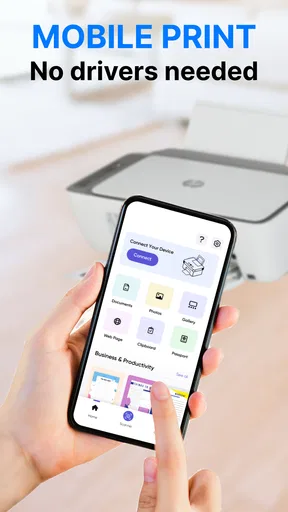
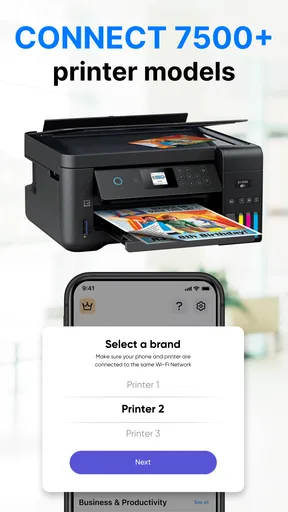
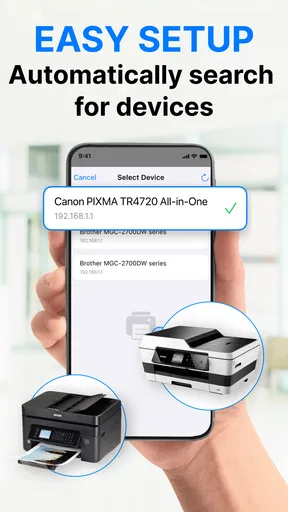
Our Review of Smart Print - Air Printer App
 Analysis by Appyee
Before installing a phone-printing app, I’d first ask what I actually need to print and where the printer is. A quick document for a meeting, a form for school, and a favorite photo each put different demands on the process. Smart Print - Air Printer App is aimed at the everyday gap between having a file on your phone and getting a paper copy without moving it to a computer first. That makes it most useful when the printer is already available and you want a direct, uncomplicated route from mobile file to page.
I’d treat it as a practical productivity tool rather than a replacement for every printer’s own software. Its appeal is convenience: find a document or image, check the print choices, and send it on its way. If you print only once in a while, the main question is whether setup feels easier than your printer’s built-in app or your usual computer workflow. If you print regularly from different sources on your phone, having one place to begin can be a real time-saver.
What to expect from a phone-first workflow
The app is published by MAPLE LABS CO., LTD and sits in the productivity space. It is free to install, with in-app purchases available, and is rated for Everyone. Its average rating is 4.5 from around 77,000 ratings, while more than a million installs suggest that mobile printing is a common need rather than a niche one. The current version is 3.3.6, and it requires Android 8.0 or later.
Those details help set expectations, but a smooth result still depends on the phone, printer, file, and connection working together. A print app can make the route more convenient; it can’t fix an empty paper tray, a printer that is offline, or a document whose layout is already awkward. I recommend thinking of the app as a handy bridge, with a quick preview as your last check before committing to paper.
Getting ready without turning setup into a project
First, make sure you can reach the printer and know how it normally connects. If it is a shared household or office printer, confirm that it is powered on and available to your phone’s network. Then open the app and look for the printer discovery step. If the printer does not appear straight away, I would check the phone’s connection and the printer’s status before repeatedly tapping through menus; a basic connection problem is easier to solve at the source.
For a first attempt, choose a simple file rather than a multi-page document with complicated formatting. A short note or a single photo makes it easier to tell whether the printer was found and whether the output looks right. Once that works, try the kind of file you actually expect to print. This small test is more reassuring than discovering a layout issue when you are already in a hurry.
Making the first successful print count
When you select a file, take a moment to review the preview and the available options. Paper size and orientation can change where content falls on the page, so I would check those before sending anything longer than a quick note. If you need multiple copies, set that deliberately rather than printing once and starting over. It is a modest habit, but it can save both paper and a second trip back to the printer.
A realistic first win might be printing a signed form that arrived on your phone before leaving home. I would open the file, confirm that the whole page is visible in preview, check the orientation, and then send one copy. If the result is clean, the next document will feel much less uncertain. If it is not, you have narrowed down the issue to the file, the print settings, or the connection instead of guessing at everything at once.
Where the convenience has limits
Wireless printing can feel effortless when the printer is discoverable and the network is steady, but it is not magic. A weak or interrupted connection may delay a job, and a printer that is asleep, offline, or attached to a different network can be confusing for a first-time user. I would avoid relying on a brand-new setup for a deadline-critical print until I had tested it with an ordinary document.
There is also a useful distinction between getting a file to print and controlling every printer-specific option. For routine pages and photos, a general mobile printing app can be more approachable than a manufacturer’s utility. If you need a model-specific maintenance function or a specialized print setting, the printer maker’s own app or software may be the better place to look. Keeping both options in mind avoids expecting one app to handle every job equally well.
Seamless Setup and User-Friendly Interface
First things first, installing the Smart Print - Air Printer App was a breeze. A quick search on the app store, a tap on the download button, and voilà, it was ready to go. The app is designed to work smoothly with both Android and iOS devices, which is a huge plus if you’re juggling multiple gadgets.
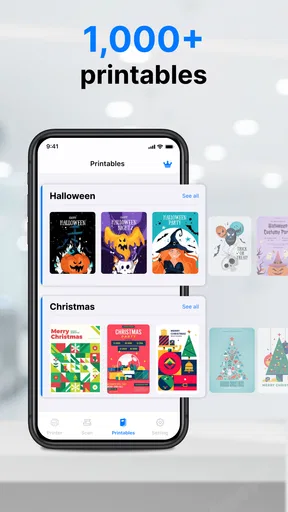
Once installed, the interface greets you with a clean and intuitive layout. No need to be a tech wizard here; everything is laid out in a straightforward manner. Whether you want to print from email, web pages, or directly from your photo gallery, the options are all neatly organized. It’s like the app knows what you’re thinking and is ready to deliver at the tap of a button.
Compatibility and Connectivity
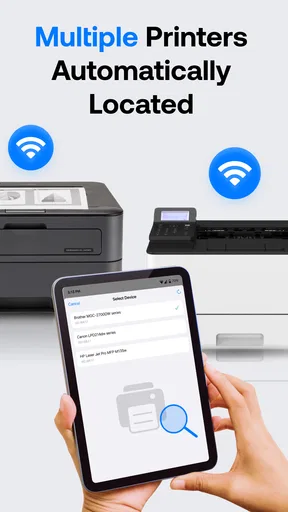
One of the standout features of this app is its compatibility with a wide range of printers. Whether you have an HP, Canon, Epson, or Brother printer, chances are, this app has you covered. The connection process is a walk in the park. The app scans for available printers, and in a few seconds, you’re all set to print. No more fiddling around with cables or complicated setup procedures.
The app uses AirPrint technology for iOS and the equally efficient Wi-Fi Direct feature for Android, ensuring a stable connection every time. For me, the ability to connect so seamlessly was a real game-changer, especially when you’re in a rush and every second counts.
Quality and Functionality
Now, let’s talk about print quality. I was pleasantly surprised to find that the app maintains the quality of the original document or photo. The color reproduction is spot on, and the text is crisp and clear. Whether you’re printing high-resolution images or lengthy documents, the results are consistently impressive.
But it’s not just about quality; the app also scores high on functionality. Need to print multiple copies? Done. Want to adjust paper size or orientation? Easy peasy. The app provides a range of customizable options to suit your specific printing needs. It even allows you to preview your document before printing, minimizing the risk of errors.
Additional Features and Performance
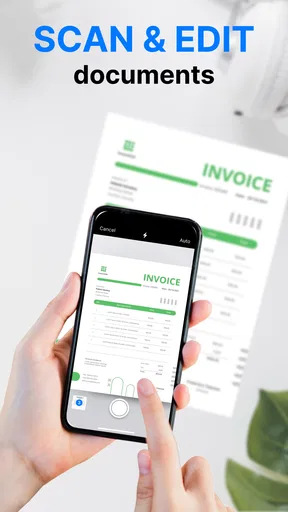
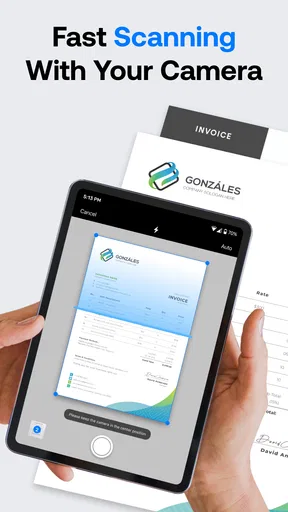
Beyond the basics, the app offers some neat additional features. The ability to scan documents using your phone’s camera and convert them to PDF is a lifesaver. It’s like having a mini office in your pocket. The app also supports cloud printing, so you can print directly from Google Drive, Dropbox, and other cloud services.
In terms of performance, the app is smooth and responsive. I haven’t experienced any crashes or glitches, which is a testament to its reliability. The developers seem committed to regular updates, ensuring that the app stays up-to-date with the latest tech advancements.
A Few Considerations
While the app is generally fantastic, there are a couple of things to keep in mind. Some advanced features might require a premium version, which involves a subscription fee. Additionally, while the app supports a wide range of printers, there might be rare instances where certain models aren’t compatible. It’s always a good idea to check compatibility before diving in headfirst.
Another point worth mentioning is the occasional need for a strong Wi-Fi signal to ensure a stable connection. If your Wi-Fi is spotty, you might experience some hiccups, but this is more of a network issue than a problem with the app itself.
One practical trade-off is choosing the right route for each job. If a file is already open in another app, sharing or opening it in the printing app may be quicker than searching through folders. For cloud-stored files, check that you can access the account and the right document before you reach the printer; that avoids holding up a shared device while you sign in or hunt for a filename. For a photo, select the image carefully and inspect the preview, since a crop that looks fine on a phone can place an important edge close to the paper boundary.
I would also use a one-page test when changing printers or moving between home and work. That is not wasted effort: it tells you whether the printer is visible from the current connection and gives you a chance to catch the wrong paper orientation before a longer job. If the app finds a printer but a job does not come out, check the printer’s own display or status first, then confirm the phone is still connected as expected. Repeatedly resending the same job can leave you with duplicate pages once the connection recovers.
For frequent printing, the choice is less about which app has the longest feature list and more about which workflow you trust. The manufacturer’s app can be the stronger choice when you need settings tied to a specific printer model. A computer remains preferable for detailed page layout or editing before printing. Smart Print is most appealing in between: a mobile-first option for a document or image that is ready to go and does not justify switching devices.
It is also worth separating scanning from printing in your expectations. A phone camera can be convenient for turning a paper page into a digital file, particularly when you need to keep or share a copy before printing. For a page with small text, uneven lighting, or important fine detail, take a moment to check the resulting PDF before relying on it. The scan-to-PDF workflow is useful, but the quality of the source image still matters.
For a student, that might mean printing a reading sheet from a cloud folder rather than forwarding it to a laptop. For someone working from home, it could be a form or a meeting note that needs a paper copy beside the desk. Someone who prints photos occasionally can benefit from the direct path from gallery to preview, while a person who needs exact color management or specialist production controls may be better served by a dedicated desktop workflow. The app’s value depends on the job, not simply on how often you print.
Before making it your default, I’d answer a few practical questions through one low-stakes test: can your printer be found where you normally use it, can you reach the file source you rely on, and do the preview controls cover your everyday needs? If those all work, keep the app as a quick option for routine jobs. If you regularly need a printer-specific setting or a carefully laid-out document, use the relevant manufacturer tool or computer instead rather than forcing a phone workflow to do more than it is suited for.
Overall, the Smart Print - Air Printer App is a reliable and versatile tool for anyone looking to simplify their printing needs. Whether you’re a student, a professional, or just someone who likes to print photos of your cat, this app is definitely worth checking out. Give it a try, and you might just find yourself wondering how you ever managed without it!
Verdict
Strengths of Smart Print - Air Printer App
- Easy connectivity with multiple devices.
- High-quality print output consistently.
- Supports a wide range of file types.
- User-friendly interface for quick setup.
- Reliable cloud integration for storage.
Limitations of Smart Print - Air Printer App
- Limited editing features before printing.
- Occasional lag with large files.
- In-app ads can be intrusive.
- Requires subscription for advanced features.
- Not compatible with some older printers.
Similar Picks in This Category
View All
Google Calendar
Google LLC4.6

Google Drive
Google LLC4.3

Google Assistant
Google LLC3.9

Microsoft OneDrive
Microsoft Corporation4.6

Samsung Calendar
Samsung Electronics Co., Ltd.4.1

Microsoft OneNote: Save Notes
Microsoft Corporation4.6
Frequently Asked Questions
What is Smart Print - Air Printer App and how does it work?
Smart Print - Air Printer App is a versatile application that allows users to print documents, photos, and other files directly from their mobile devices. It utilizes wireless technology to connect to compatible printers, making it easy to print from anywhere in your home or office without the need for cables.
Is Smart Print - Air Printer App compatible with all printers?
Smart Print - Air Printer App is compatible with most AirPrint-enabled printers. However, it’s important to check the app’s compatibility list or the printer's specifications to ensure it will work with your specific model. Compatibility may vary depending on the printer’s make and model.
What file types can I print using Smart Print - Air Printer App?
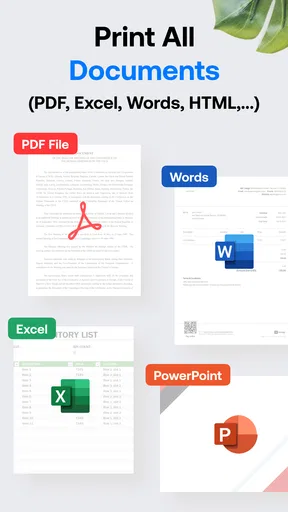
The app supports a wide range of file types, including PDFs, Word documents, Excel spreadsheets, and various image formats such as JPEG and PNG. This makes it a versatile tool for printing different types of files directly from your smartphone or tablet.
Does Smart Print - Air Printer App require an internet connection to print?
While an internet connection is typically required to download and install the app, printing itself can often be done over a local Wi-Fi network. This means you can print documents without an active internet connection, as long as your device and printer are connected to the same network.
Are there any additional costs associated with using Smart Print - Air Printer App?
The app may offer both free and premium versions, with the premium version providing additional features such as enhanced editing tools or unlimited printing. Users may also incur costs related to paper, ink, or toner, depending on their printing needs and usage.
